9 RGB컬러 사진에 대한 이해
컬러 사진은 흑백과는 다르게 색조가 있는데 shape가 다음과 같이 구성되어 있음.
(3, 28, 28)
3은 red, green, blue로 색으로 표현
문제195. 아이린 사진을 파이썬에서 시각화 하시오.
from PIL import Image
import numpy as np
import matplotlib.pyplot as plt

img = Image.open("c:\\deep\\아이린.jpg")  #아이린 사진을 불러와서 img변수에 넣음
img_pixel = np.array(img)  #img를 numpy배열로 변환
plt.imshow(img_pixel)  #numpy 배열 시각화
print(img_pixel.shape)  #(500,500,3)
설명: 학습 시킬때의 numpy 4차원 배열 형태는 (장수, 색조, 세로, 가로) 인데
시각화 할 수 있는 이미지의 배열 형태는 (장수, 세로, 가로, 색조 )
날코딩으로 이미지를 학습 시킬때는 (60000, 1, 28, 28) 순서로 학습을 시켰는데
텐써플로우는 (60000, 28, 28, 1 ) 이렇게 넣고 학습 시킵니다.
텐써플로우가 알아서 우리가 날코딩 했을 때 shape 로 변경해서 학습을 시키는 것입니다.
문제196. 아이린 사진에서 red부분의 행렬을 취하고 red부분만 시각화 하시오.
img_pixel[:,:,1] = 0  # green 전부 0으로 변경
img_pixel[:,:,2] = 0  # blue 전부 0으로 변경
plt.imshow(img_pixel)  #numpy배열 시각화
plt.show()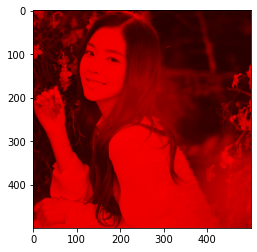
문제197. 아이린 사진에서 green부분만 시각화 하시오.
img = Image.open("c:\\deep\\아이린.jpg")  #아이린 사진을 불러와서 img변수에 넣음
img_pixel = np.array(img)  #img를 numpy배열로 변환
plt.imshow(img_pixel)  #numpy 배열 시각화

img_pixel[:,:,0] = 0  # red 전부 0으로 변경
img_pixel[:,:,2] = 0  # blue 전부 0으로 변경
plt.imshow(img_pixel)  #numpy배열 시각화
plt.show()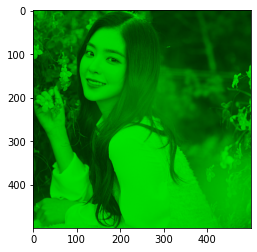
문제198. 아이린 사진에서 blue 부분만 시각화하시오.
img = Image.open("c:\\deep\\아이린.jpg")  #아이린 사진을 불러와서 img변수에 넣음
img_pixel = np.array(img)  #img를 numpy배열로 변환
plt.imshow(img_pixel)  #numpy 배열 시각화

img_pixel[:,:,0] = 0  # red 전부 0으로 변경
img_pixel[:,:,1] = 0  # green 전부 0으로 변경
plt.imshow(img_pixel)  #numpy배열 시각화
plt.show()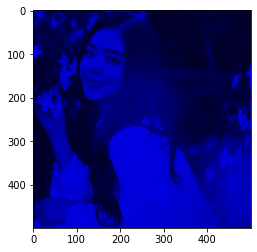
10 정상 이파리와 질병 이파리 분류 신경망 만들기
예제1. 이미지를 아래와 같이 준비해주세요.
예제2. C:\\deep\\test100폴더에서 이미지의 이름을 가져오는 함수를 생성하시오.
test_images = 'C:\\deep\\test100'

import os

def image_load(path):
    file_list = os.listdir(path)  #폴더 안에 있는 파일들의 이름을 가져와라
    return file_list

print(image_load(test_images))
예제3. 위의 결과에서 .jpg는 빼고 숫자만 출력되게 하시오.
test_images = 'C:\\deep\\test100'

import os
import re

def image_load(path):
    file_list = os.listdir(path)  #폴더 안에 있는 파일들의 이름을 가져와라
    file_name = []

    for i in file_list: #file_list에서 데이터를 하나씩 불러옴
        a = int(re.sub('[^0-9]','',i)) # i가 숫자가 아니라면 null로 변경해라
        file_name.append(a)

    return file_name

print(image_load(test_images))
예제4. 위의 출력되는 결과가 ascending 하게 정렬되어서 출력되게 하시오.
test_images = 'C:\\deep\\test100'

import os
import re

def image_load(path):
    file_list = os.listdir(path)  #폴더 안에 있는 파일들의 이름을 가져와라
    file_name = []

    for i in file_list: #file_list에서 데이터를 하나씩 불러옴
        a = int(re.sub('[^0-9]','',i)) # i가 숫자가 아니라면 null로 변경해라
        file_name.append(a)
    file_name.sort()  #정렬
    return file_name

print(image_load(test_images))
예제5. 위에서 출력된 결과를 아래와 같이 .jpg를 붙여서 출력되게 하시오.
test_images = 'C:\\deep\\test100'

import os
import re

def image_load(path):
    file_list = os.listdir(path)  #폴더 안에 있는 파일들의 이름을 가져와라
    file_name = []

    for i in file_list: #file_list에서 데이터를 하나씩 불러옴
        a = int(re.sub('[^0-9]','',i)) # i가 숫자가 아니라면 null로 변경해라
        file_name.append(a)

    file_name.sort()  #정렬

    file_res = []
    for j in file_name:
        file_res.append(str(j) + '.jpg')

    return file_res

print(image_load(test_images))
예제6. 이미지 이름 앞에 절대경로가 붙게 하시오.
test_images = 'C:\\deep\\test100'

import os
import re

def image_load(path):
    file_list = os.listdir(path)  #폴더 안에 있는 파일들의 이름을 가져와라
    file_name = []

    for i in file_list: #file_list에서 데이터를 하나씩 불러옴
        a = int(re.sub('[^0-9]','',i)) # i가 숫자가 아니라면 null로 변경해라
        file_name.append(a)

    file_name.sort()  #정렬

    file_res = []
    for j in file_name:
        file_res.append(path + '\\' + str(j) + '.jpg')

    return file_res

print(image_load(test_images))
os 폴더에 다운받은 사진을 숫자로 변경하려면 위의 경로를 가지고 cv2 imread 함수에 넣으면 됨. 숫자로 변경해야 신경망에 넣어서 다차원 배열로 구성할 수 있기 때문.
예제7. 위에서 출력되고 있는 경로와 이미지명을 가지고 그 이미지들을 숫자로 변환하는 코드를 함수에 넣으시오.
test_images = 'C:\\deep\\test100'

import os
import re
import cv2
import numpy as np

def image_load(path):
    file_list = os.listdir(path)  #폴더 안에 있는 파일들의 이름을 가져와라
    file_name = []

    for i in file_list: #file_list에서 데이터를 하나씩 불러옴
        a = int(re.sub('[^0-9]','',i)) # i가 숫자가 아니라면 null로 변경해라
        file_name.append(a)

    file_name.sort()  #정렬

    image = []
    for k in file_name:
        file = path + '\\' + str(k) + '.jpg'
        img = cv2.imread(file)  #이미지를 숫자로 변환
        image.append(img)

    return np.array(image)

print(image_load(test_images))
예제8. 이파리 데이터의 정답 데이터를 생성하시오.
정상은 숫자 0, 질병은 숫자 1
테스트 데이터로 예를들면 테스트 데이터 100개 중에 앞에 50개는 정상, 뒤에 50개가 질병이미지
path = 'c:\\deep\\test_label.csv'
file = open(path, 'w')


for i in range(0,100):
    if i < 50:
        file.write(str(0) + '\n')
    else:
        file.write(str(1) + '\n')
file.close()
예제9. 훈련데이터의 정답도 위와 같은 방법으로 만듭니다.
훈련데이터 정답 csv파일의 이름은 train_label.csv이고 정상 이파리 2000개와 질병 이파리 2000개로 구성되어있음을 참조
path = 'c:\\deep\\train_label.csv'
file = open(path, 'w')


for i in range(0,4000):
    if i < 2000:
        file.write(str(0) + '\n')
    else:
        file.write(str(1) + '\n')
file.close()
신경망을 학습시킬 데이터와 정답데이터 준비완료(지도학습)
인공신경망 생성해보겠음.
예제10. c:\\deep 밑에 train_resize, test_resize 라는 폴더를 각각 만듭니다.
예제11 테스트 데이터와 훈련 데이터에 대해서 32x32로 각각 resize 합니다.
path = 'c:\\deep\\train4000'

file_list = os.listdir(path)   # 파일이름 불러오는 부분

for k in file_list:     # 리스트안에 있는 파일들을 하나씩 빼내는 코드
    img = cv2.imread(path + '\\' + k) #사진을 숫자행렬로 변경합니다.

    width, height = img.shape[:2]  # 사진 숫자 행렬에서 가로,세로 가져온다.
    resize_img = cv2.resize(img, (32 , 32), interpolation=cv2.INTER_CUBIC) #32x32로 resize
    cv2.imwrite('c:\\deep\\train_resize\\' + k, resize_img)   # resize 한 이미지를 저장합니다.
path = 'c:\\deep\\test100'
file_list = os.listdir(path) # 파일이름 불러오는 부분
for k in file_list: # 리스트안에 있는 파일들을 하나씩 빼내는 코드
img = cv2.imread(path + '\\' + k) #사진을 숫자행렬로 변경합니다.
width, height = img.shape[:2] # 사진 숫자 행렬에서 가로,세로 가져온다.
resize_img = cv2.resize(img, (32 , 32), interpolation=cv2.INTER_CUBIC) #32x32로 resize
cv2.imwrite('c:\\deep\\test_resize\\' + k, resize_img) # resize 한 이미지를 저장합니다.
예제12. 라벨데이터를 원핫인코딩 하시오.
import csv

def label_load(path):
    file = open(path)
    label_data = csv.reader(file)
    labellist = []
    for i in label_data:
        labellist.append(i)

    label = np.array(labellist)
    label = label.astype(int)  #숫자로 변환
    label = np.eye(2)[label] #one hot encoding 한 결과를 label에 넣어야함
    label = label.reshape(-1,2) # 행은 알아서 하고 열은 무조건 2열을 지켜라
    return label

test_image = 'c:\\deep\\test_label.csv'
label_load(test_image)
예제13. 위에서 만든 image_load함수와 label_load 함수를 가지고 훈련 데이터와 테스트 데이터를 불러오시오.
#이미지데이터와 라벨 위치 지정
train_img_path = 'c:\\deep\\train_resize'
test_img_path = 'c:\\deep\\test_resize'

train_label_path = 'c:\\deep\\train_label.csv'
test_label_path = 'c:\\deep\\test_label.csv'

#데이터 로드
x_train = image_load(train_img_path)
y_train = label_load(train_label_path)
x_test = image_load(test_img_path)
y_test = label_load(test_label_path)

print(x_train.shape, y_train.shape, x_test.shape, y_test.shape)
#(4000, 32, 32, 3) (4000, 2) (100, 32, 32, 3) (100, 2)
문제199. 지금 학습 시킨 모델을 leaf_model.h5로 내리시오.
model.save('c:\\deep\\leaf_model.h5')
11 이파리 데이터 한 장을 학습된 신경망에 넣고 예측해보기
import tensorflow as  tf
import cv2

img_path = 'c:\\deep\\train4000\\3.jpg'

img = cv2.imread(img_path)  #이미지를 숫자로 변환
img = cv2.bitwise_not(img)
print(img.shape)

import tensorflow.compat.v1 as tf  #텐서플로우 1버전을 사용하겠다
tf.disable_v2_behavior()  #텐서플로우 2버전을 disable 시킨다.

resized_images=tf.image.resize_images(img, (32, 32)) #불러온 이미지를 3x3으로 리사이즈
print(resized_images.shape)
학습된 신경망에 resize한 이미지를 넣고 예측합니다.
import numpy as np

x2 =tf.reshape(resized_images, [-1,32,32,3]) / 255  #3차원을 4차원으로 변경, 정규화
print(x2.shape)

from tensorflow.keras.models import load_model  #모델 불러오는 함수

new_model = load_model('c:\\deep\\leaf_model.h5')

results = new_model.predict(x2,steps=1)
np.argmax(results)
문제200. 이번에는 질병 이파리 이미지를 신경망에 입력하려 예측하시오.
12 코렙에서 정상 이파리와 질병 이파리 분류 신경망 만들기
1. 구글 드라이브와 코랩 연동
from google.colab import drive
drive.mount('/content/drive')
2. test100.zip, train4000.zip 를 구글 드라이브에 업로드
3. 압축파일을 풀 폴더를 각각 생성(train, test)
4. test100.zip 압축을 test폴더 밑에 해제
!unzip -qq /content/drive/MyDrive/leaf/test100.zip -d /content/drive/MyDrive/leaf/test #느낌표 쓰면 리눅스 명령어 사용 가능 -qq 압축파일 위치 -d 압축 풀 위치5. train4000.zip 압축을 train폴더 밑에 해제
!unzip -qq /content/drive/MyDrive/leaf/train4000.zip -d /content/drive/MyDrive/leaf/train/6. train데이터를 위한 정답 데이터 생성
path="/content/drive/MyDrive/leaf/train_label.csv"

file = open( path, 'w')

for  i in  range(0, 2000):
    file.write( str(1) + '\n')
for i  in  range(0, 2000):
    file.write( str(0) + '\n')

file.close()
7. test데이터를 위한 정답 데이터 생성
path="/content/drive/MyDrive/leaf/test_label.csv"

file = open( path, 'w')

for  i in  range(0, 50):
    file.write( str(1) + '\n')
for i  in  range(0, 50):
    file.write( str(0) + '\n')

file.close()
8. 이미지를 숫자로 변환하는 함수 생성
import os
import re
import cv2
import numpy as np

def image_load(path):
    file_list = os.listdir(path)
    file_name=[]

    for  i  in  file_list:
        a = int( re.sub('[^0-9]','', i) )   # i 가 숫자가 아니면 null 로 변경해라 ~
        file_name.append(a)
    file_name.sort() # 정렬작업

    file_res=[]
    for  j  in  file_name:
        file_res.append('%s/%d.jpg' %(path,j) )

    image=[]
    for  k  in  file_res:
        img = cv2.imread(k)
        image.append(img)

    return  np.array(image)
9. 정답 데이터인 csv파일을 읽어와서 넘파이 어레이로 만드는 함수 생성
import csv

def  label_load(path):
    file = open(path)
    labeldata = csv.reader(file)
    labellist = []
    for  i  in  labeldata:
        labellist.append(int(i[0]))

    return   np.array(labellist)
10. resize한 파일들을 따로 저장할 train_resize, test_resize 폴더 생성
11. 훈련 이미지 파일들을 32x32로 resize
import  cv2
import  os
import  numpy  as np

path = "/content/drive/MyDrive/leaf/train/"
file_list = os.listdir(path)   # 파일이름 불러오는 부분

for k in file_list:     # 리스트안에 있는 파일들을 하나씩 빼내는 코드
    img = cv2.imread(path + '/' + k) # 사진을 숫자행렬로 변경합니다.

    width, height = img.shape[:2]  # 사진 숫자 행렬에서 가로,세로 가져온다.
    resize_img = cv2.resize(img, (32 , 32), interpolation=cv2.INTER_CUBIC)
    cv2.imwrite('/content/drive/MyDrive/leaf/train_resize/' + k, resize_img)   # resize 한 이미지를 저장합니
12. 테스트 이미지 파일들을 32x32로 resize
import  cv2
import  os
import  numpy  as np

path = "/content/drive/MyDrive/leaf/test/"
file_list = os.listdir(path)   # 파일이름 불러오는 부분

for k in file_list:     # 리스트안에 있는 파일들을 하나씩 빼내는 코드
    img = cv2.imread(path + '/' + k) # 사진을 숫자행렬로 변경합니다.
                                                   # (165, 201, 3)
    width, height = img.shape[:2]  # 사진 숫자 행렬에서 가로,세로 가져온다.
    resize_img = cv2.resize(img, (32 , 32), interpolation=cv2.INTER_CUBIC)
    cv2.imwrite('/content/drive/MyDrive/leaf/test_resize/' + k, resize_img)   # resize 한 이미지를 저장합니
13. 리사이즈한 이미지들을 파이썬으로 불러옴
# 1. leaf 데이터를 불러옵니다.

# 이미지 데이터와 라벨위치
train_image = '/content/drive/MyDrive/leaf/train_resize/'
test_image = '/content/drive/MyDrive/leaf/test_resize/'
train_label = '/content/drive/MyDrive/leaf/train_label.csv'
test_label = '/content/drive/MyDrive/leaf/test_label.csv'

# 데이터 로드
x_train = image_load(train_image)
y_train = label_load(train_label)
x_test = image_load(test_image)
y_test = label_load(test_label)

print(x_train.shape)
print(x_test.shape)
print(y_train.shape)
print(y_test.shape)
14. 신경망에 넣고 훈련
# 드롭아웃 적용하기

# 1. 필요한 패키지 가져오는 코드

import tensorflow as tf   # 텐써 플로우 2.0
from tensorflow.keras.datasets.mnist import load_data  # 텐써플로우에 내장되어있는
                                                                         # mnist 데이터를 가져온다.
from tensorflow.keras.models import Sequential  # 모델을 구성하기 위한 모듈
from tensorflow.keras.layers import Dense, BatchNormalization, Dropout, Conv2D, MaxPooling2D ,Flatten# 완전 연결계층을 구성하기 위한 모듈
from tensorflow.keras.utils import to_categorical # one encoding 하는 모듈

tf.random.set_seed(777)


# 2. 정규화 진행
x_train = x_train.reshape(-1, 32, 32, 3) / 255
x_test = x_test.reshape(-1, 32,32, 3) / 255

# 3. 정답 데이터를 준비한다.
# 하나의 숫자를 one hot encoding 한다. (예:  4 ---> 0 0 0 0 1 0 0 0 0 0 )
y_train = to_categorical(y_train)  # 훈련 데이터의 라벨(정답)을 원핫 인코딩
y_test = to_categorical(y_test)    # 테스트 데이터의 라벨(정답)을 원핫 인코딩

print(x_train.shape)
print(x_test.shape)
print(y_train.shape)
print(y_test.shape)
# 드롭아웃 적용하기
# 1. 필요한 패키지 가져오는 코드
import tensorflow as tf # 텐써 플로우 2.0
from tensorflow.keras.datasets.mnist import load_data # 텐써플로우에 내장되어있는
# mnist 데이터를 가져온다.
from tensorflow.keras.models import Sequential # 모델을 구성하기 위한 모듈
from tensorflow.keras.layers import Dense, BatchNormalization, Dropout, Conv2D, MaxPooling2D ,Flatten# 완전 연결계층을 구성하기 위한 모듈
from tensorflow.keras.utils import to_categorical # one encoding 하는 모듈
import numpy as np
tf.random.set_seed(777)
# 4. 모델을 구성합니다. 3층 신경망으로 구성
model = Sequential()
model.add(Conv2D(200, activation='relu', kernel_size=(8,8), padding='same', input_shape=(32,32,3)))
model.add(BatchNormalization())
model.add(MaxPooling2D(pool_size=(2,2), padding='same'))
model.add(Conv2D(100, activation='relu', kernel_size=(5,5), padding='same'))
model.add(BatchNormalization())
model.add(MaxPooling2D(pool_size=(2,2), padding='same'))
model.add(Flatten())
model.add(Dense(100, activation='relu'))
model.add(BatchNormalization())
model.add(Dropout(0.3))
model.add(Dense(100, activation='relu'))
model.add(BatchNormalization())
model.add(Dropout(0.3))
model.add(Dense(2, activation='softmax'))
# 5. 모델을 설정합니다. ( 경사하강법, 오차함수를 정의해줍니다. )
model.compile(optimizer='Adam',
loss = 'categorical_crossentropy',
metrics=['acc']) # 학습과정에서 정확도를 보려고
#6. 모델을 훈련시킵니다.
history= model.fit(x_train, y_train,
batch_size = 100,
validation_data = (x_test, y_test),
epochs = 30)
# 7.모델을 평가합니다. (오차, 정확도가 출력됩니다.)
model.evaluate(x_test, y_test)
train_acc_list=history.history['acc']
train_acc_list
test_acc_list=history.history['val_acc']
test_acc_list
import matplotlib.pyplot as plt
x = np.arange( len(train_acc_list) )
plt.plot( x, train_acc_list, label='train acc')
plt.plot( x, test_acc_list, label='test acc', linestyle='--')
plt.ylim(0, 1)
plt.legend(loc='lower right')
plt.xlabel('epochs')
plt.ylabel('accuracy')
plt.show()
model.save('leaf_model2.h5')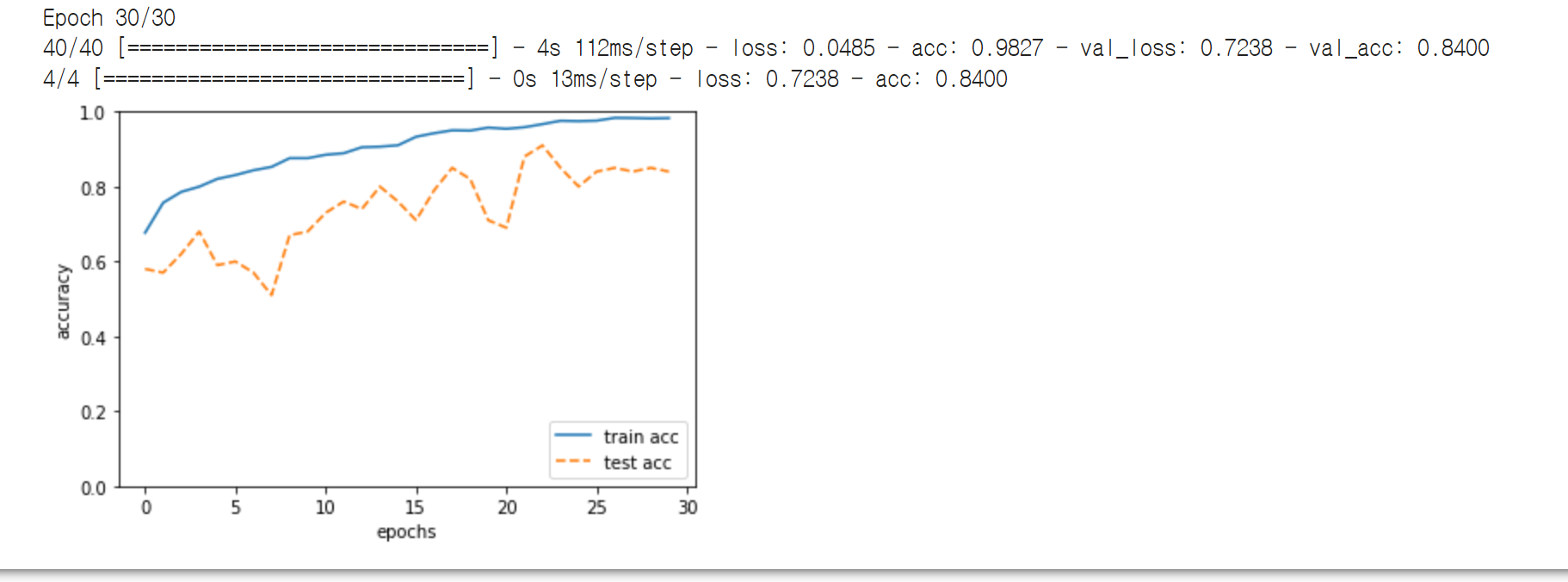
'Study > class note' 카테고리의 다른 글
| 딥러닝 / 사과와 파인애플 분류 신경망 만들기 (0) | 2022.04.21 |
|---|---|
| 딥러닝 / 신경망 활용 사용자 인터페이스 만들기 (0) | 2022.04.20 |
| 딥러닝 / CNN구현 (0) | 2022.04.18 |
| 딥러닝 / 풀링계층 구현하기 (0) | 2022.04.18 |
| 딥러닝 / 합성곱 convolution계층 설명 (0) | 2022.04.18 |

